Oct 2026 New: ChessZCam Viewer Mode. Waitlist members get first access and an early-supporter discount on ChessZCam. Join the waitlist →

ChessZCam · Viewer Mode

New · in trial builds

Follow the game live — from outside the hall.

Parents, coaches and spectators outside the playing hall follow the live digital board on their own Android phone, while ChessZCam's camera phone follows the real board.
Same Wi-Fi or hotspot Android app Read-only English · Bahasa Melayu · 中文 Baca dalam Bahasa Melayu →
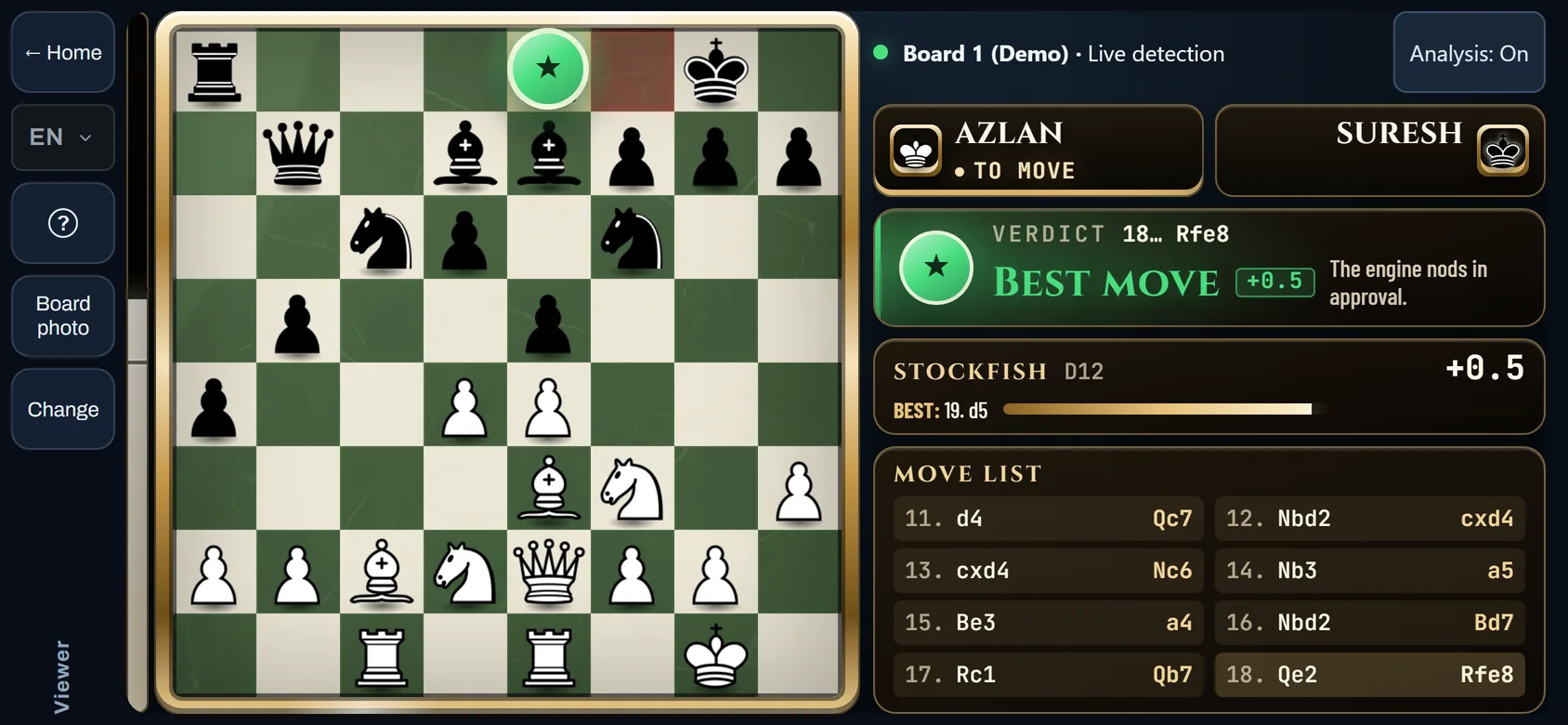
ChessZCam Viewer Mode on a phone held sideways: digital chess board, players Azlan and Suresh, a Best move verdict, Stockfish evaluation and the move list for Board 1 (Demo).
Demo capture of the real Viewer screen on an emulated phone, with a demo game and demo names. Not a photo of a phone.

How it works

How ChessZCam Viewer Mode works

Viewer Mode sends confirmed moves, not video, to a phone on the same Wi‑Fi or hotspot. Pick the set-up you use.

Two phones, no PC

The camera phone shares the board straight to the viewer's phone.

Same Wi‑Fi, hotspot or local network only. Not from home, not over the internet or mobile data. Viewers need the ChessZCam Android app: no iPhone, no web browser.

  1. Scan to join Open the ChessZCam app on your Android phone and scan the Viewer QR on the camera phone.
  2. A piece moves A player makes a move on the real board inside the playing hall.
  3. The camera phone sees it The phone on the stand detects the move and confirms it.
  4. The move travels A tiny move message, never video, crosses the shared Wi‑Fi to you outside the hall.
  5. Your board updates Your phone redraws the digital board and grades the move with its own Stockfish.
Illustration, not a screenshot. Viewer Mode shows engine analysis: it is read-only and meant for spectators outside the playing hall, never for players, and whether it may be used at an event is the organiser's decision. It is not an arbiter tool or an official record. In trial builds; not yet used through a full tournament day.

With ChessZCam Live

A Windows PC feeds the viewer phones and a vMix or OBS broadcast together.

Same Wi‑Fi, hotspot or local network only. Not from home, not over the internet or mobile data. Viewers need the ChessZCam Android app: no iPhone, no web browser.

  1. Scan to join Each viewer opens the ChessZCam app and scans the Viewer QR shown by ChessZCam Live on the PC.
  2. A piece moves A player makes a move on the real board inside the playing hall.
  3. Phone to PC The camera phone detects the move and sends it over the local network to the Windows PC.
  4. Overlay for the broadcast ChessZCam Live updates a transparent overlay in vMix or OBS on the same PC.
  5. Viewer phones update The same move reaches viewer phones outside the hall, read-only, with the PC's analysis.
Illustration, not a screenshot. Viewer Mode shows engine analysis: it is read-only and meant for spectators outside the playing hall, never for players, and whether it may be used at an event is the organiser's decision. It is not an arbiter tool or an official record. In trial builds; not yet used through a full tournament day.

On the viewer's phone

What a viewer sees.

The digital board, the players' names, a verdict for each move, the full move list and a clear status line. For parents in the waiting area, coaches outside the hall where the organiser allows it, and organisers who want families away from the doorway.
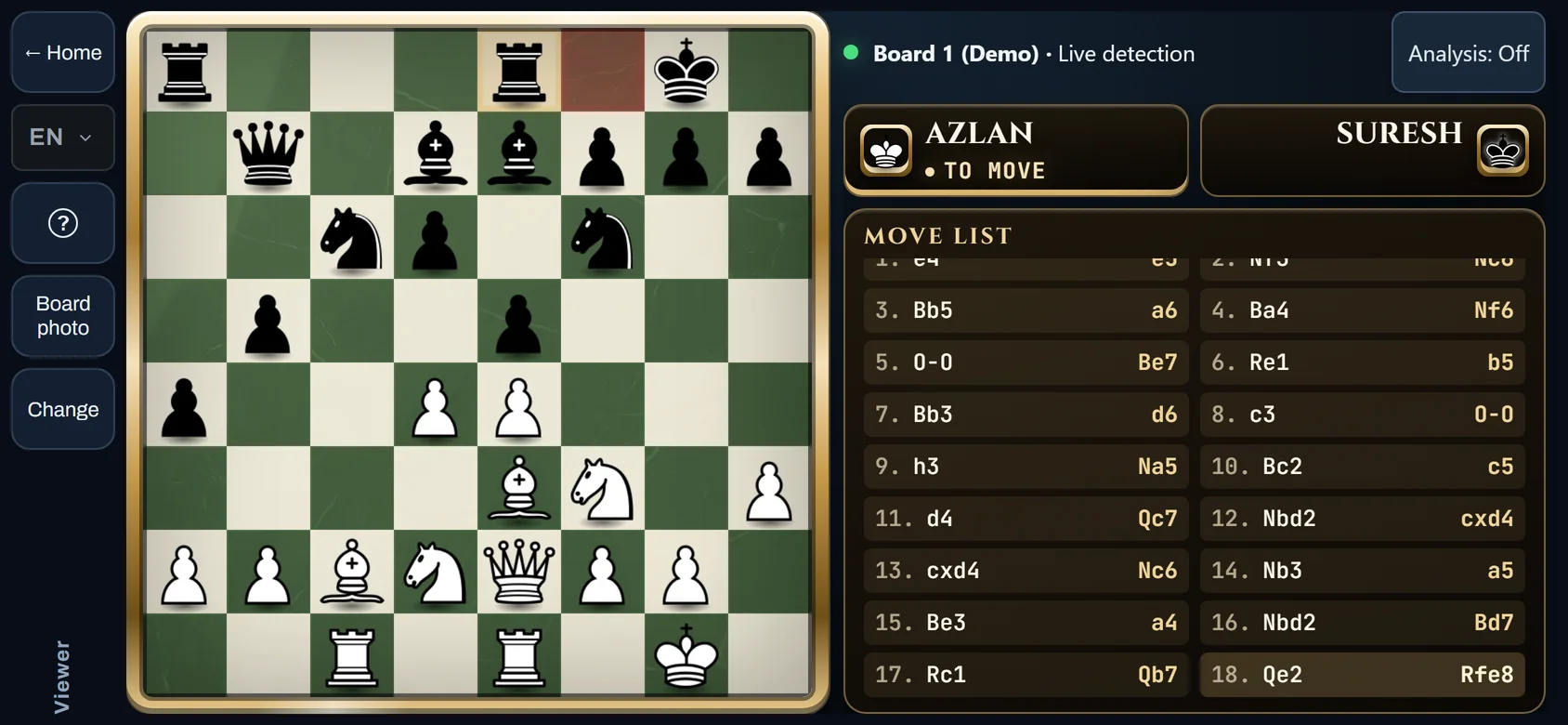
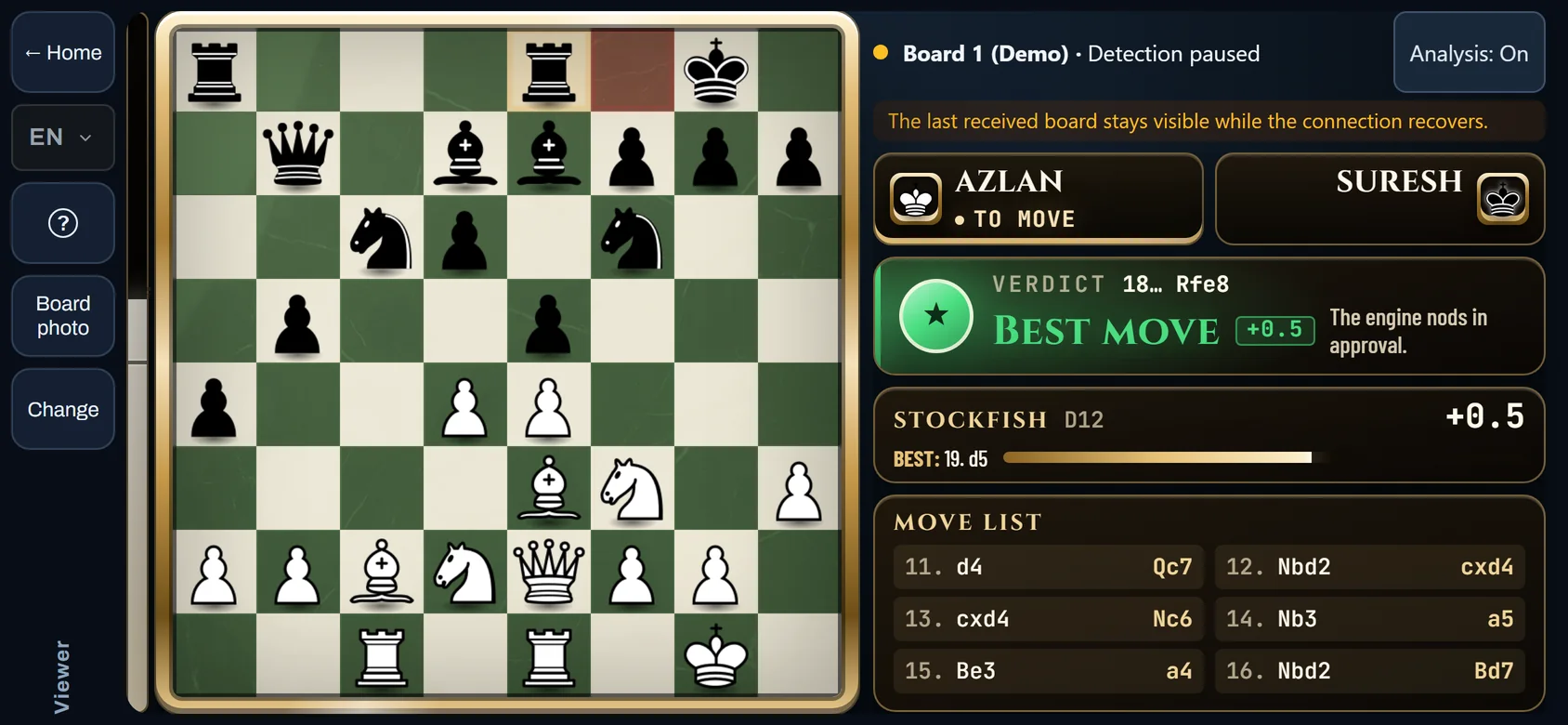
ChessZCam Viewer Mode on a phone held sideways: digital chess board, players Azlan and Suresh, a Best move verdict, Stockfish evaluation and the move list for Board 1 (Demo).
The live boardDemo capture: board, evaluation bar, verdict, Stockfish panel and move list.
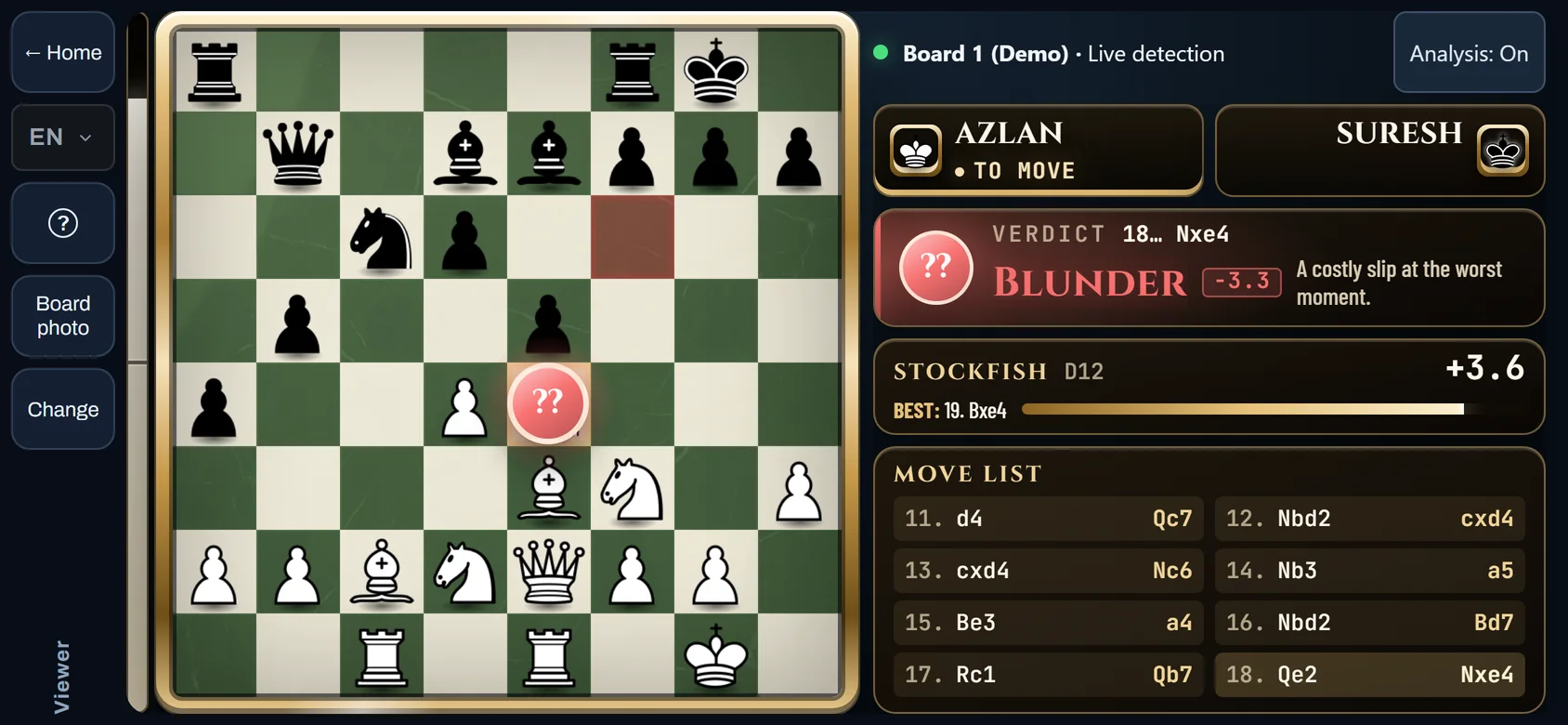
ChessZCam Viewer showing a red Blunder verdict for the move 18… Nxe4 on Board 1 (Demo), with Stockfish evaluation +3.6.
A verdict for each moveDemo capture: a weak demo move, graded Blunder by the app's own Stockfish.
ChessZCam Viewer with Analysis switched off: only the digital board, player names and the move list are shown.
Analysis: OffDemo capture: one tap hides everything that comes from the engine, on that phone only.
ChessZCam Viewer status line reading Detection paused, with the last received board still visible.
Detection pausedDemo capture: the viewer says so and keeps the last board.
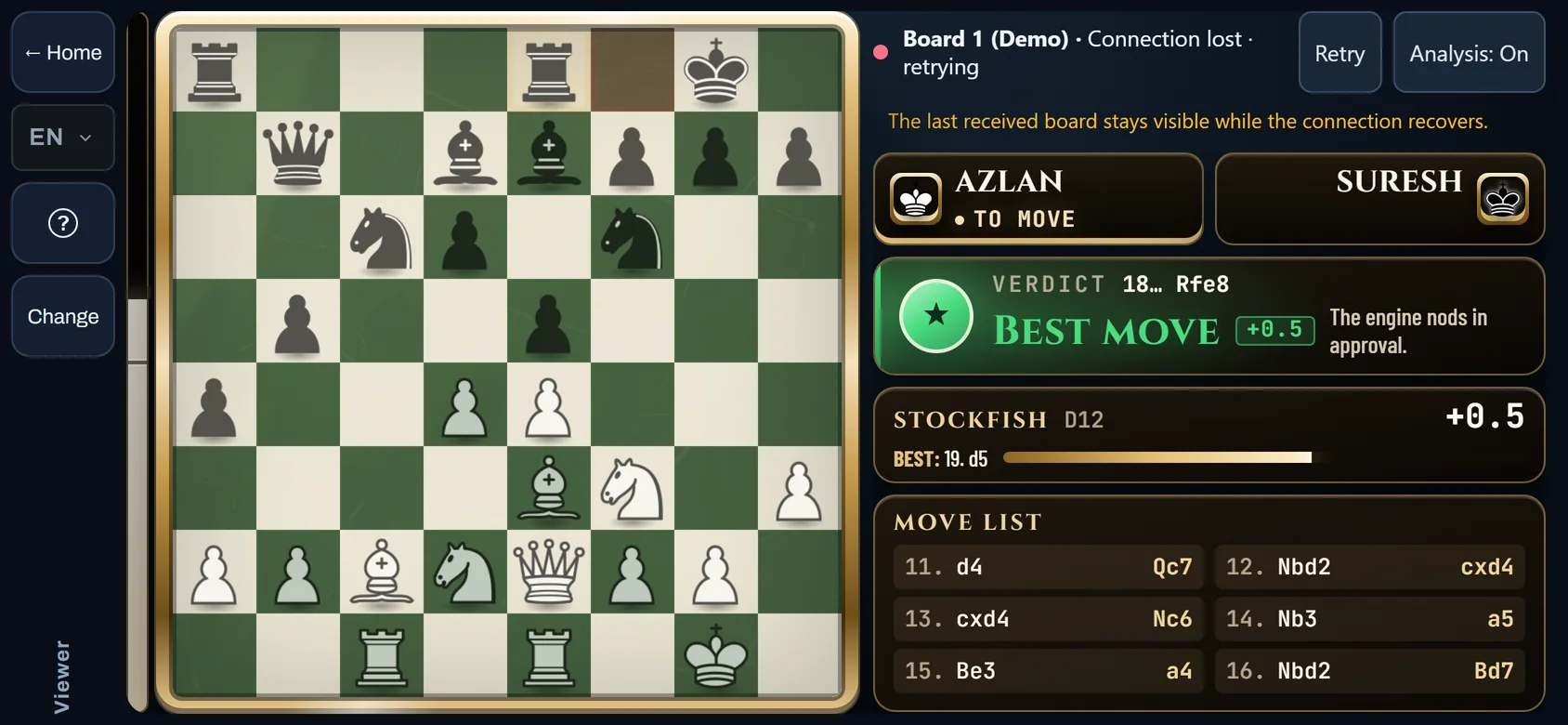
ChessZCam Viewer status line reading Connection lost, retrying, with a Retry button and the dimmed last board.
Connection lostDemo capture: the status says it is retrying and the last board stays on screen.
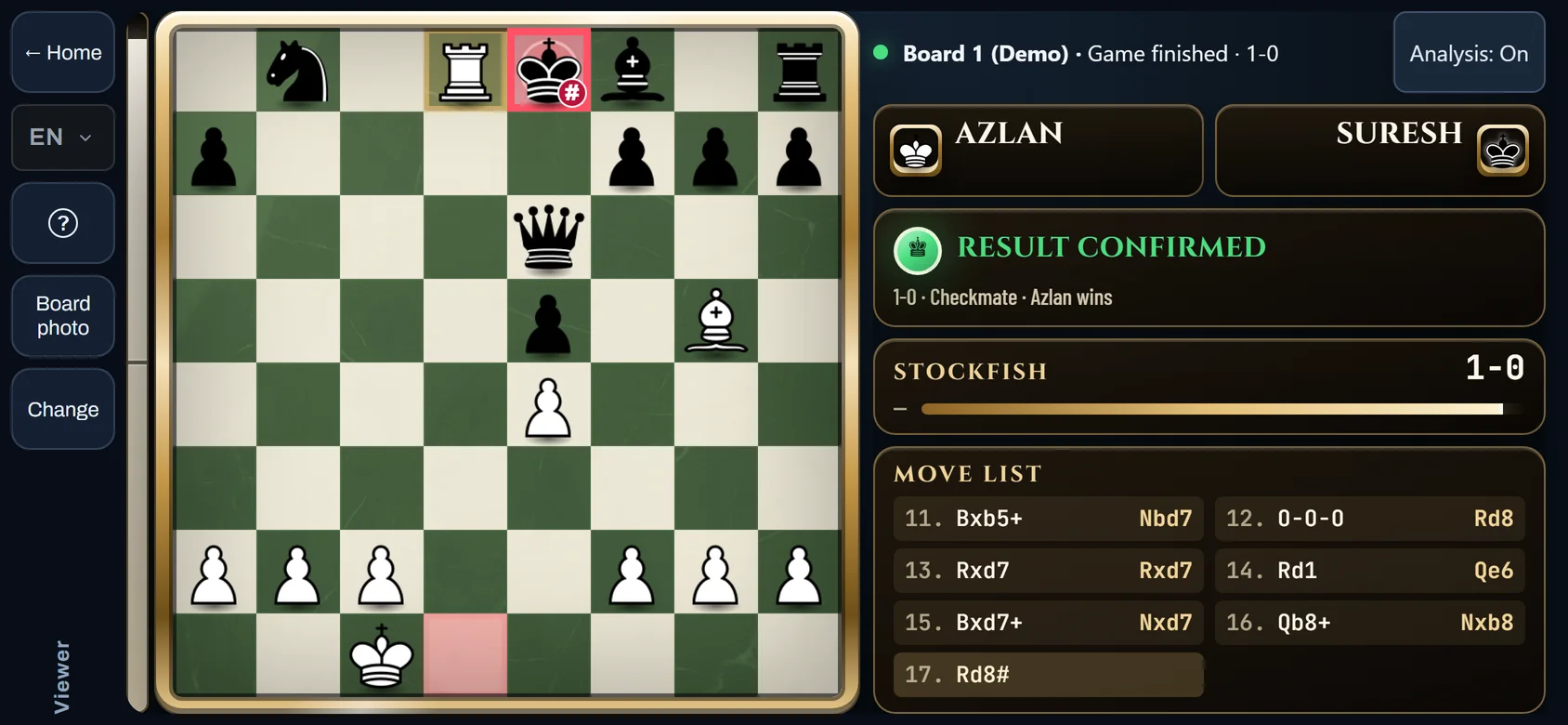
ChessZCam Viewer after a finished game: Result confirmed, 1-0 by checkmate, Azlan wins, with the final position and move list.
Game finishedDemo capture: the result at the end of a short demo game, 1-0 by checkmate.

Swipe or scroll sideways for more → Tap or click a capture to enlarge it. All six are demo captures of the real interface on an emulated phone screen, with demo data.

Setting up

Set it up, step by step.

Both ways need the ChessZCam Android app on every phone and one shared Wi-Fi or hotspot. App labels are still changing, so the steps say what to do.
Two phones

  1. Join one network. Put the camera phone and the viewer's phone on the same Wi-Fi or hotspot, with the same ChessZCam version on both.
  2. Aim and lock the board. On the camera phone, open the live move-detection screen, line up the board and lock it.
  3. Start sharing first. Start viewer sharing before you start detection. The camera phone shows a Viewer QR; names and a board label are optional.
  4. Scan it on the viewer's phone. Outside the hall, open Viewer Mode in the ChessZCam app and use Scan QR, or Paste link and then Watch game.
  5. Start detection and play. The viewer's phone follows each confirmed move and adds its own Stockfish analysis. Stop sharing when the game is over.
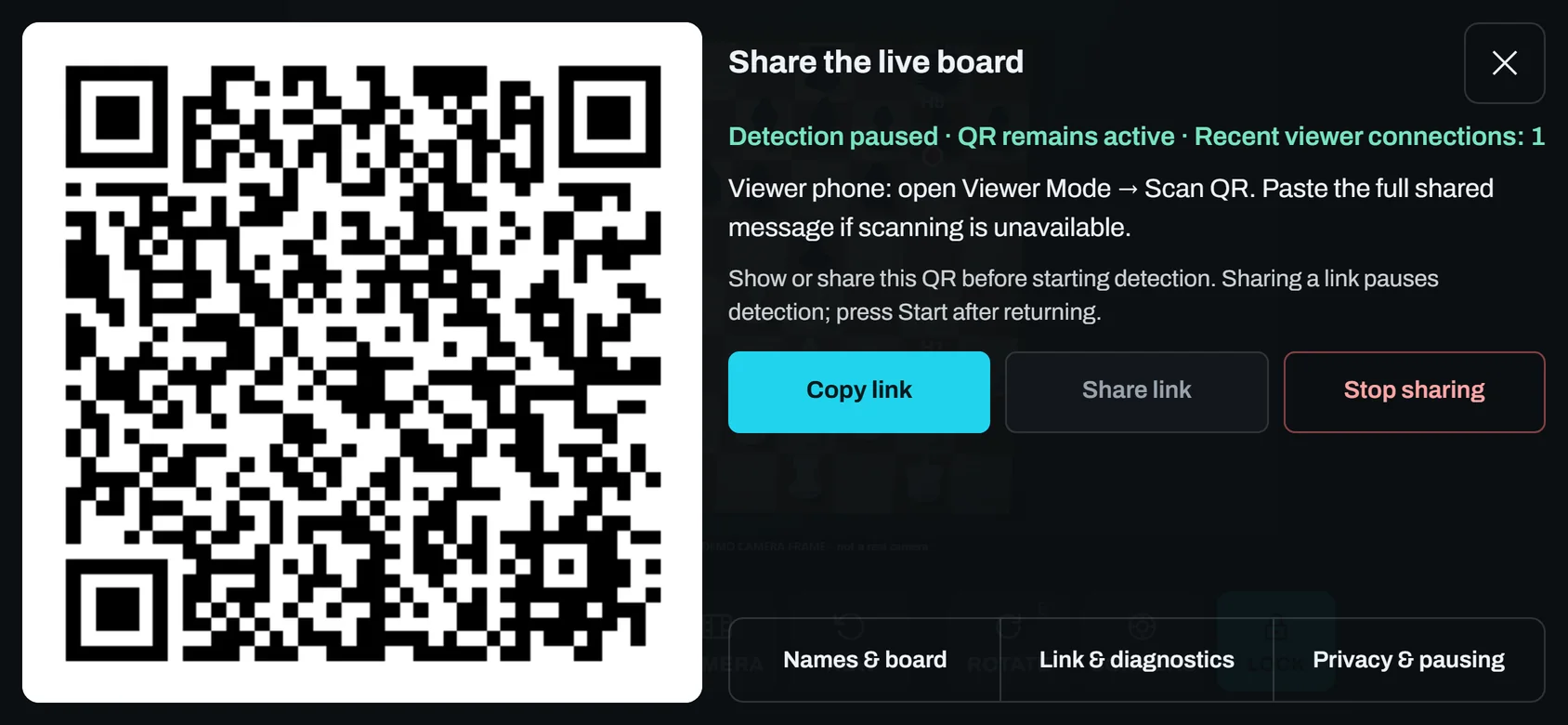
ChessZCam camera phone showing the Share the live board dialog with a Viewer QR code and Copy link, Share link and Stop sharing buttons.
Demo capture of the camera phone's real share dialog, on an emulated screen. Dummy QR.
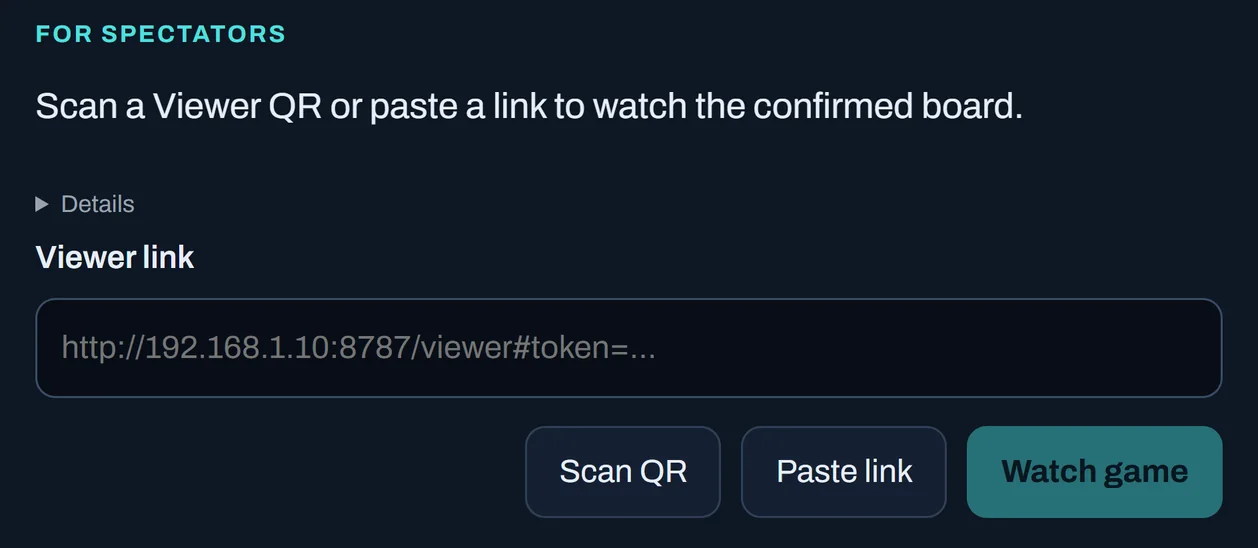
ChessZCam Viewer join screen with a Viewer link field and the buttons Scan QR, Paste link and Watch game.
Demo capture (cropped) of the app's real join screen, on an emulated screen. Example address.

With a PC

  1. Join one network. Put the PC, the camera phone and the viewer phones on the same local network. Allow ChessZCam Live through Windows Firewall from its Setup screen.
  2. Pair the camera phone. Open its broadcast-to-PC screen and pair with the code or QR on the PC. Check that the PC's board follows the real one.
  3. Open the Viewer QR. It is on the PC's Setup screen, separate from the pairing code, and read-only.
  4. Viewers scan it. Outside the hall, each viewer opens Viewer Mode in the ChessZCam app and uses Scan QR, or Paste link and then Watch game.
  5. Run the broadcast as usual. vMix or OBS keeps showing the overlay. Viewers see the PC's analysis and can hide it on their own phone. Viewer access can be turned off at any time.
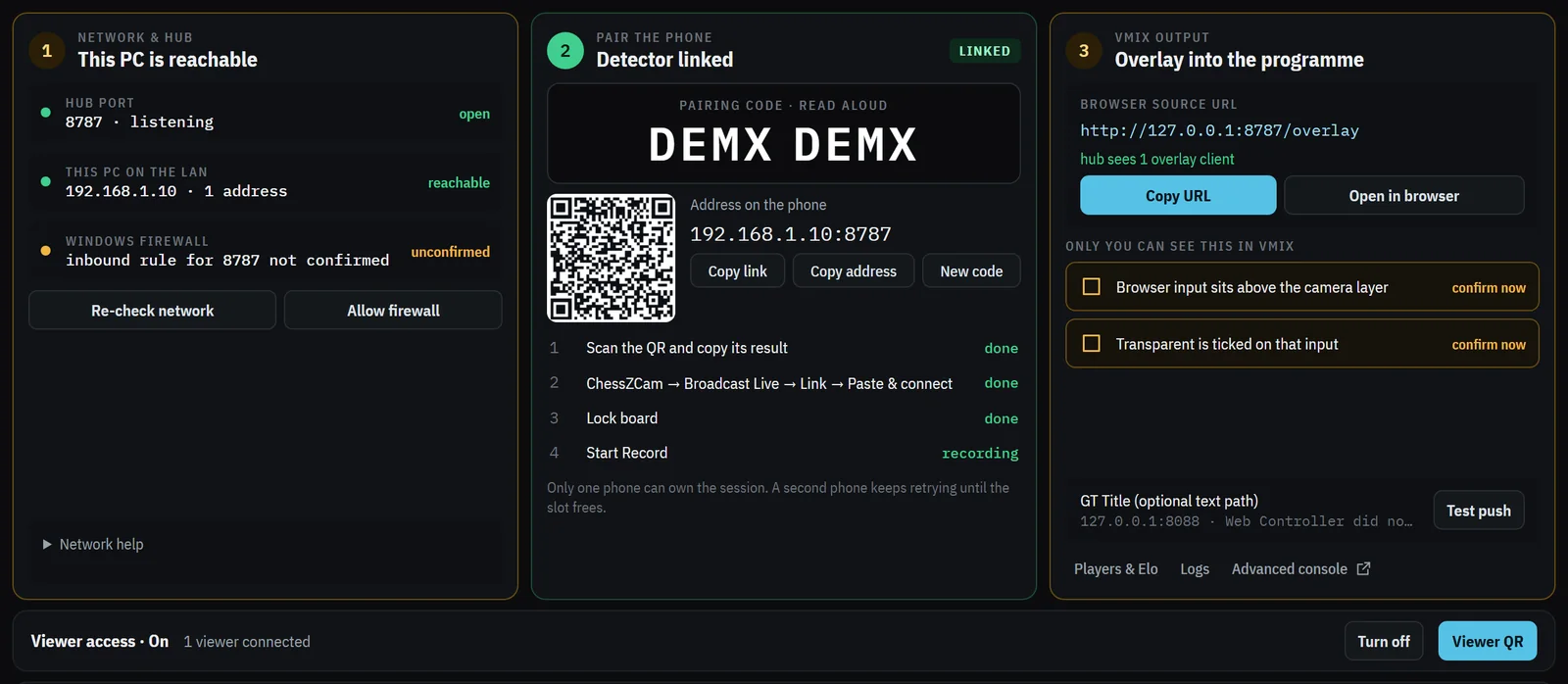
ChessZCam Live setup cards for network, phone pairing and vMix output, with the Viewer access strip and its Viewer QR button underneath.
Demo capture (cropped) of the real ChessZCam Live Setup screen, with Viewer access along the bottom. Codes and addresses are dummies.
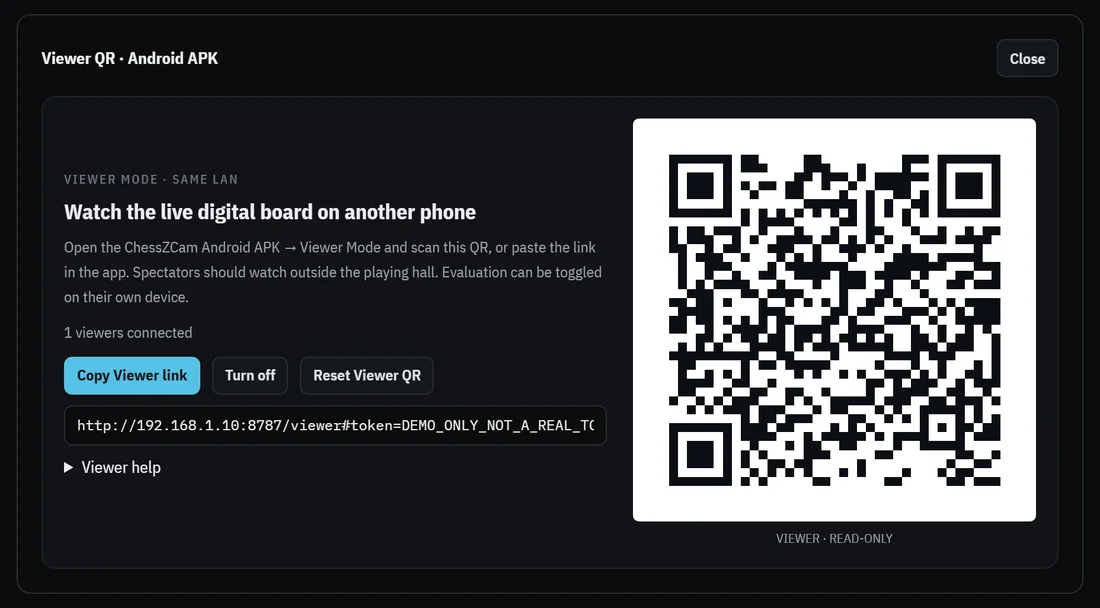
ChessZCam Live Viewer QR dialog: a read-only QR code for the Android app, with Copy Viewer link, Turn off and Reset Viewer QR buttons.
Demo capture of the real Viewer QR dialog in ChessZCam Live, cropped to the dialog. The QR and the link are dummies.

Before you go to the hall

  • The same app version on every phone. Install it at home, not at the door.
  • A small router or a phone hotspot. Some venue Wi-Fi blocks phones from seeing each other.
  • Power for the camera phone. It keeps the detection screen open for the whole game.
  • A steady stand. One that will not be nudged, with the whole board in view.
  • Ask the organiser first. Viewer Mode shows engine analysis; using it is their decision.

Camera position, lighting and network advice are in the setup guide.
ChessZCam Live logo

ChessZCam Live · for vMix or OBS

New: Viewer QR

One PC: a broadcast and a viewing corner.

ChessZCam Live is a Windows app. It takes small game data, not video, from the camera phone, draws the overlay for vMix or OBS and now shows a separate read-only Viewer QR.

THE OPERATOR'S SCREEN

One operator, three screens.

Live, Overlay and Setup. The operator watches the detected board, the move list and the engine line, and decides what the overlay shows.
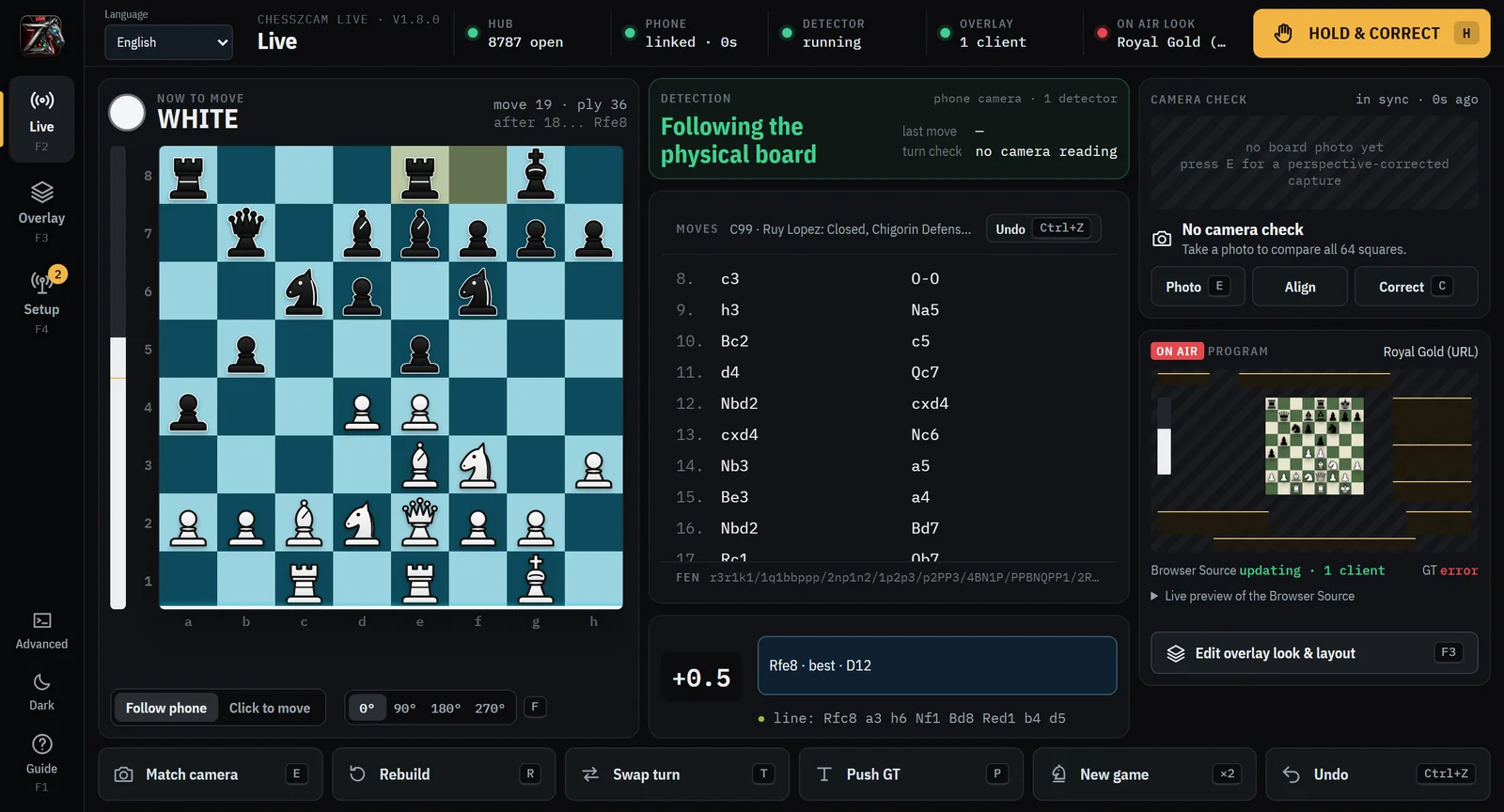
  • Hold & correct. When detection goes wrong, hold the overlay and fix the position. Afterwards, rely on the phone's own game record: the PC's move list may be incomplete.
  • Lower-third cards. Players, event, round, venue and a free line, cued by hand or automatically.
  • A verdict lane. A short plain-language note for each move in English, Malay or Chinese, with opening names and check and checkmate marks.
  • A Viewer QR. Separate from the pairing code, read-only, with its own on and off switch.
ChessZCam Live operator screen on Windows: the detected board, move list, Stockfish evaluation and status chips for hub, phone, detector and overlay.
Demo capture of the real ChessZCam Live operator screen, following a demo game from a simulated camera phone. No camera or vMix was connected, so a few status lines show that.

Overlay styles

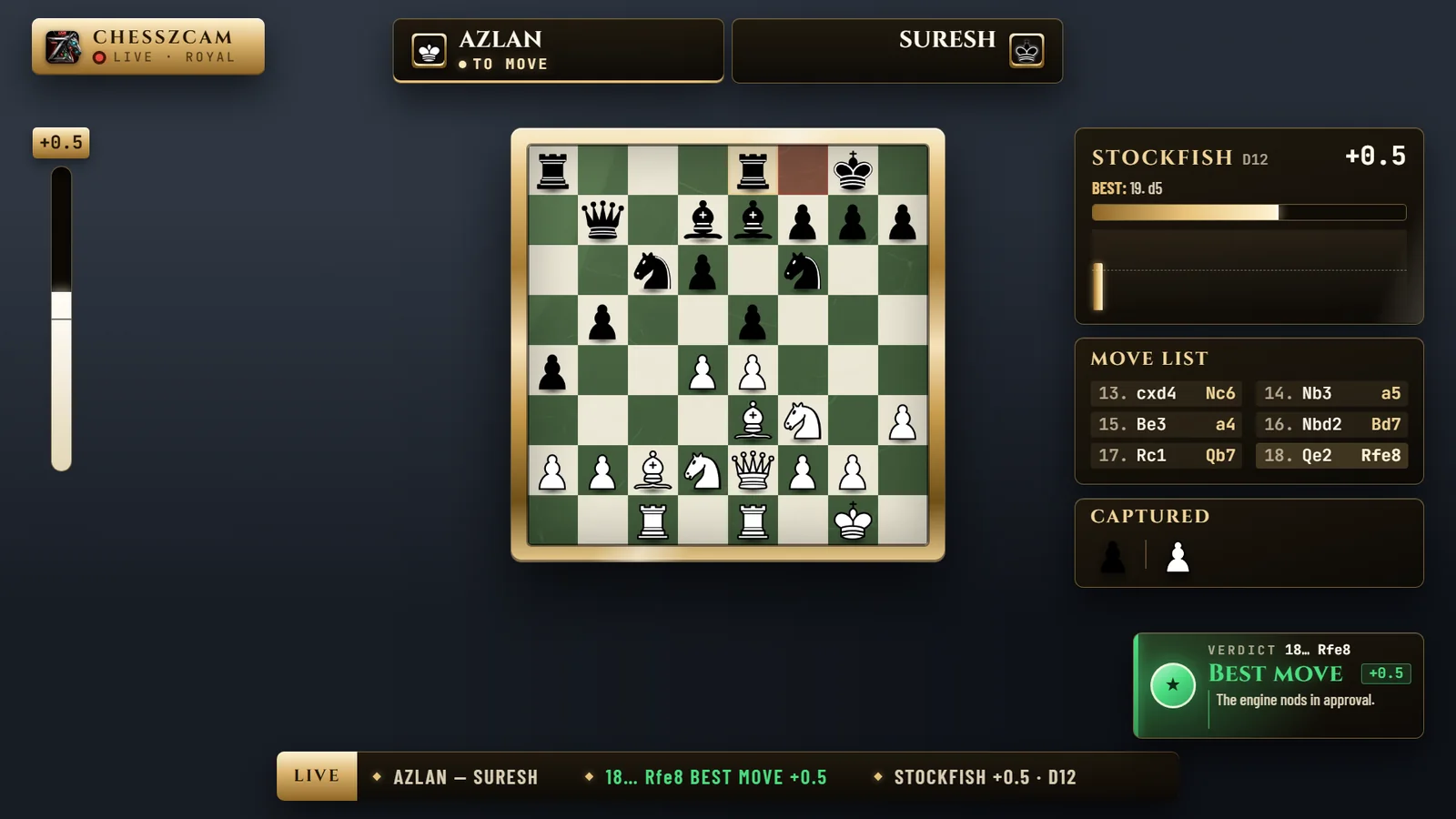
ChessZCam Live broadcast overlay in the Royal Gold style with a demo game between Azlan and Suresh, shown on a plain dark background.
Royal GoldGold frame, green board and serif lettering.
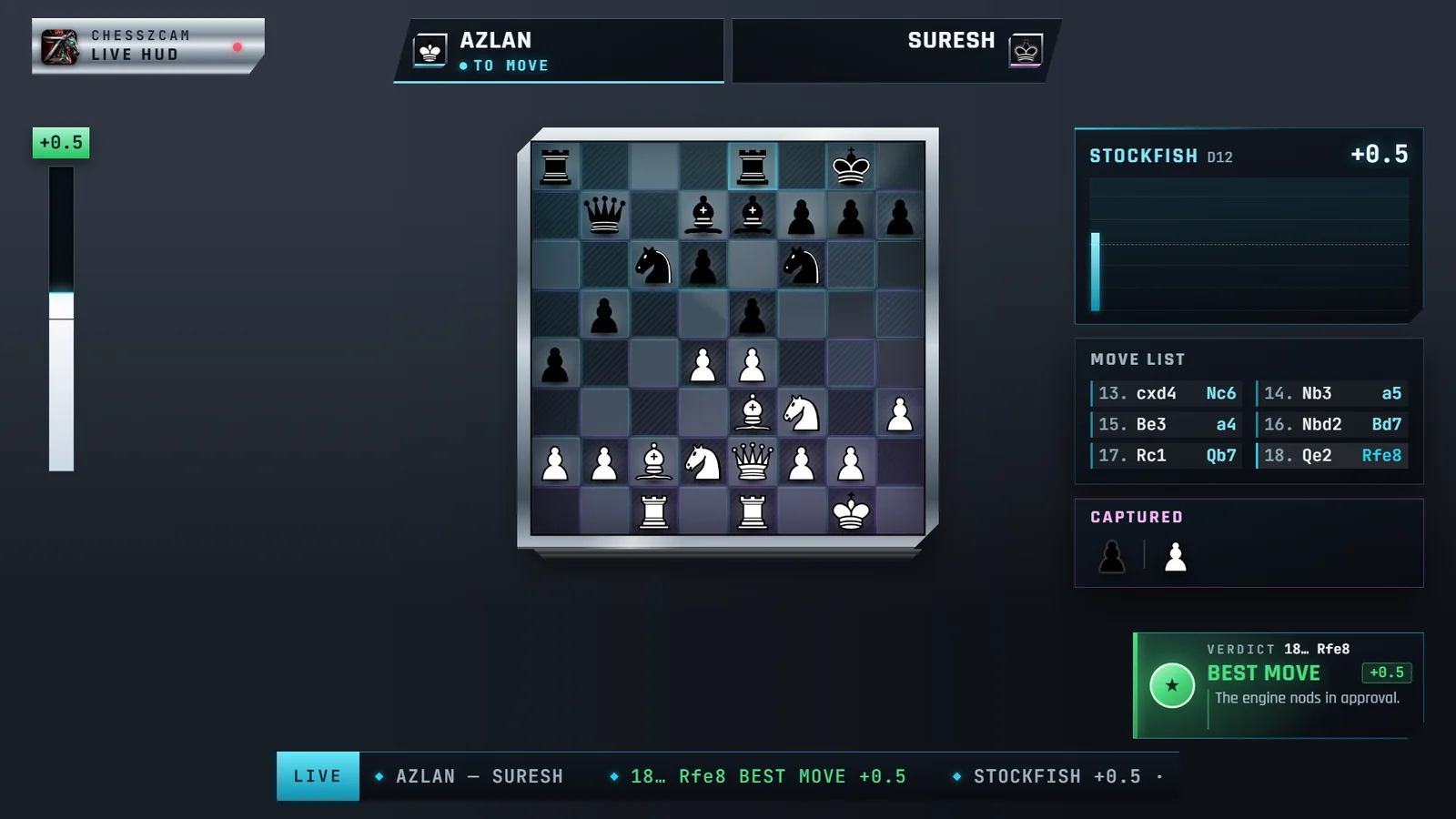
ChessZCam Live broadcast overlay in the Obsidian HUD style with a demo game between Azlan and Suresh, shown on a plain dark background.
Obsidian HUDBrushed-steel frame and a dark glass board.
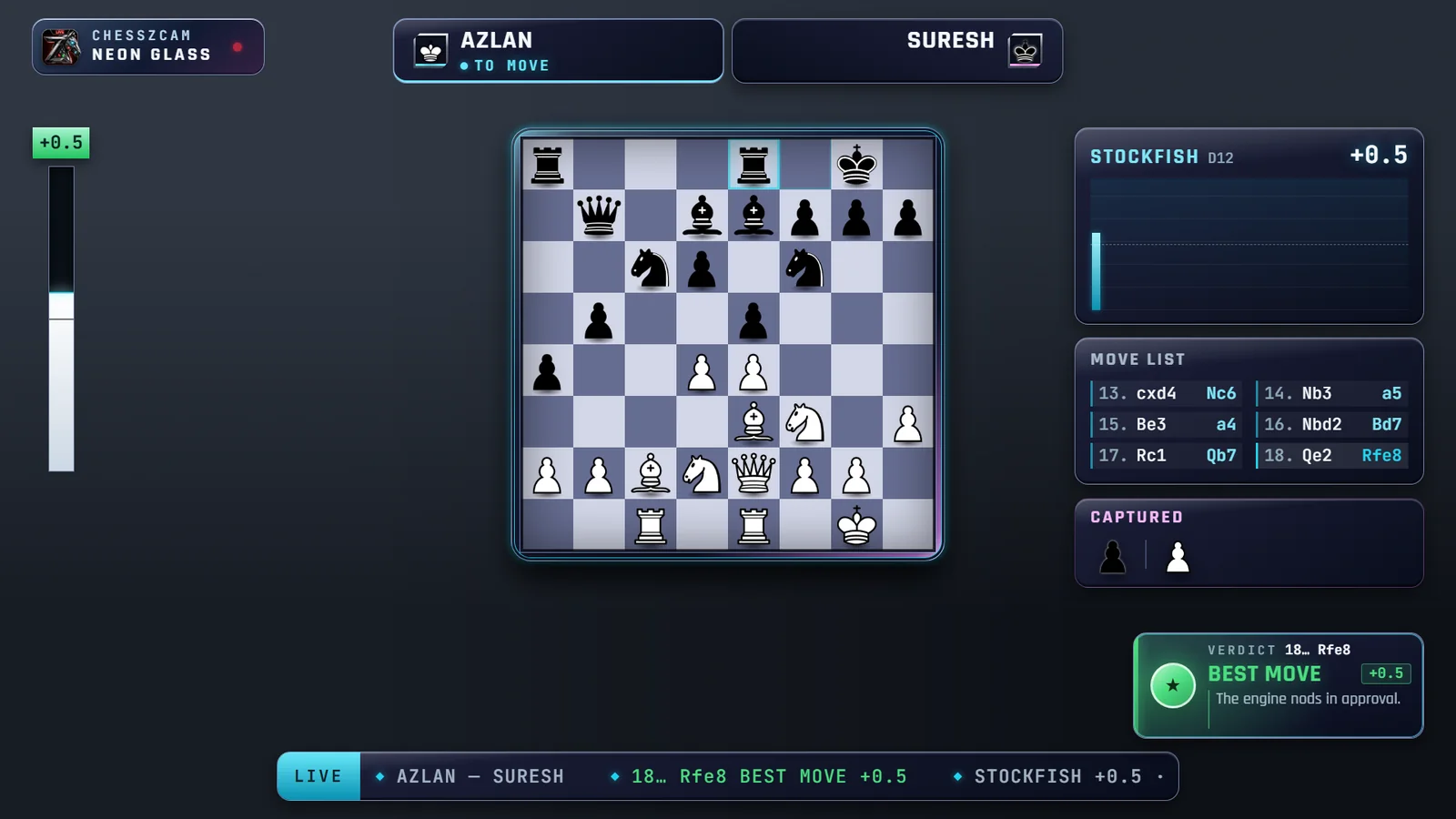
ChessZCam Live broadcast overlay in the Neon Glass Studio style with a demo game between Azlan and Suresh, shown on a plain dark background.
Neon Glass StudioRounded glass panels with a cyan glow.
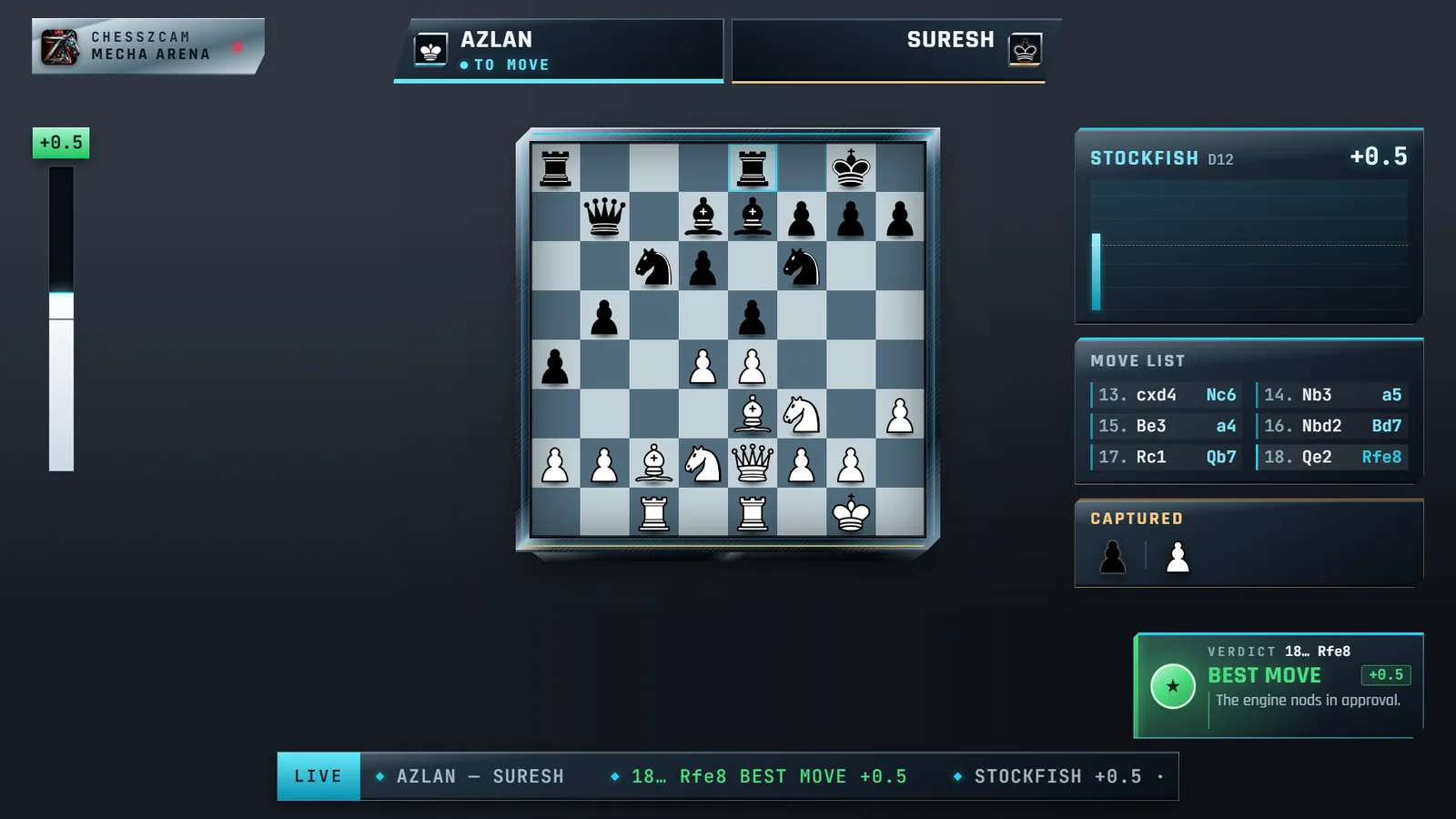
ChessZCam Live broadcast overlay in the Mecha Arena style with a demo game between Azlan and Suresh, shown on a plain dark background.
Mecha ArenaAngular metal frame with cut corners.
ChessZCam Live broadcast overlay in the Neon Carbon style with a demo game between Azlan and Suresh, shown on a plain dark background.
Neon CarbonDark carbon board with blue and red edges.
ChessZCam Live broadcast overlay in the Classic style with a demo game between Azlan and Suresh, cropped to the overlay on a plain dark background.
ClassicCompact: the board, the names and a verdict card.

Swipe or scroll sideways for more → Demo captures of the real overlay output with a demo game, composited on a dark background; in vMix or OBS the overlay sits over your camera. A designer lets you arrange the panels.

What this could do at your event

A tournament stream on YouTube

Put the digital board, the names and a verdict for each move over your camera picture at a school or club event.

Honest limit: The streaming itself is done by vMix or OBS, not by ChessZCam.

A top-board broadcast

Follow the board everyone wants to see, move by move, with the engine's view beside it.

Honest limit: One board per PC, and it needs an operator.

The hall TV or projector

Send the vMix or OBS output to a big screen so the room can follow the top board.

Honest limit: There is no dedicated projector mode. The organiser decides whether engine evaluation is shown in the hall; it can be switched off.

A commentary desk

The verdict lane, the opening name and the engine panel give a commentator something to talk from.

Honest limit: There is no chess clock data.

A parents' viewing corner

Put the Viewer QR on a table outside the hall and let parents follow on their own phones.

Honest limit: Same local network and Android app only; several viewers at once is not yet proven.

A coach in another room

A coach follows a pupil's game on the Viewer screen without standing over the board.

Honest limit: Only where the organiser allows it, and never to pass analysis to a player.

Fair play & limits

Fair play, privacy and honest limits.

Fair play. Viewer Mode shows engine analysis. It is meant for spectators outside the playing hall — never for players, and never as an arbiter's record. Whether it may be used at an event is the organiser's decision.

WHAT IS SHARED

  • Confirmed moves and the position. That is what draws the digital board.
  • Names and a board label, if you want. Optional text typed by the operator.
  • No camera video, and no operator notes.
  • Read-only. Viewers cannot change the board, the camera, the detection or the broadcast.

LIMITS TODAY

  • Same Wi-Fi or hotspot only. Not from home, not over mobile data. Some venue Wi-Fi blocks phones from seeing each other; a small router or a phone hotspot solves that.
  • Android app only, for now. No iPhone, no web browser.
  • One board per link. One camera phone follows one board; with the PC, one board per PC.
  • Phone held sideways, app kept open. That is the viewer's phone. The camera phone must keep its detection screen open too; a phone call pauses it.
  • It follows the detector. If detection is paused, late or wrong, viewers see that. It is not an official record or an arbiter's tool.

In trial builds (Phone app 1.18 · Studio 0.23 · Live 1.8): tested on real phones in both set-ups, and it runs smoothly. It has not yet been used through a full tournament day. Watching from further away is only an idea for later; there is no promise and no date.

Frequently asked

Viewer Mode questions, answered plainly.

Can I watch from home?

No. Viewer Mode works only on the same Wi-Fi or hotspot as the camera phone or the PC. It does not work from home, over the internet or over mobile data. Watching from further away is only an idea for later, with no promise.

Does it work on iPhone or in a browser?

Not for now. Viewers need the ChessZCam Android app. There is no iPhone app and no web-browser viewer.

Do I need a PC?

No. Two Android phones are enough: the camera phone shares the board straight to the viewer's phone. A Windows PC with ChessZCam Live is optional. It adds the broadcast overlay for vMix or OBS and its own Viewer QR.

Can players or coaches use it during a game?

Players, never. Viewer Mode shows engine analysis, so it is meant for spectators outside the playing hall. A coach may follow from outside the hall only if the organiser allows it, and must not pass anything on to a player. Whether it may be used at an event is the organiser's decision.

How many people can watch?

We do not quote a number, because it depends on the venue network and the phones. Viewer Mode has been tested on real phones in both set-ups. Several viewers at once is not yet proven.

What if the venue Wi-Fi blocks it?

Some venue Wi-Fi stops phones from seeing each other, and then Viewer Mode cannot connect. Bring a small router or use a phone hotspot, and put the camera phone, the viewer phones and the PC, if you use one, on that network.

Does it work with vMix and OBS?

Yes, both. The ChessZCam Live overlay is a standard browser source, and we have used it in vMix and in OBS. vMix or OBS must run on the same PC as ChessZCam Live. The overlay is separate from Viewer Mode: the overlay is for your stream or recording, the Viewer QR is for phones nearby.

What will it cost and when can I try it?

Neither is decided yet. Waitlist members get the early trial first and will be offered an early-supporter discount on ChessZCam when sales open. The amount is not decided. Joining is free and is not an order.

Waitlist: first access + discount

Be among the first to use it.

Join the waitlist now. Waitlist members get the early trial first and will be offered an early-supporter discount on ChessZCam when sales open. The amount is not decided yet. Joining is free and is not an order.

How the terms word the early-supporter discount →