
⏱
Less typing at the desk
Results arrive as data, not handwriting, and go to Swiss-Manager as one file instead of one board at a time.

SwissMax · LAN results
Phones optional · PC entry works on its ownOn paper, results travel as slips to the desk and are typed in again. With LAN results, helpers tap each board's result on their phones, it arrives on the organizer PC, and SwissMax writes the Player-Results XML for Swiss-Manager.
Updated
Why it matters
The next round is paired from this round's results, so every board's result has to reach Swiss-Manager, and be right. When results travel on paper, the organizer's desk becomes the queue.
Results arrive as data, not handwriting, and go to Swiss-Manager as one file instead of one board at a time.
SwissMax never overwrites a disputed result. A conflict waits on the organizer PC until someone picks the right one.
Each helper phone is locked to one section, so a U12 result cannot land on an Open board.
01 · Start the hub
Load the round's pairings first, from the Pairings area or a Chess-Results pairing link. Then, in Results, open the LAN control center and press Enable Hub & scoring. Phones and the PC work from the same board list.
Each section keeps its own boards and round, and is refreshed on its own when Swiss-Manager publishes a new round.
Results that reach the PC are saved with the project and its recovery snapshots. Start the hub again and they are loaded back.
SwissMax will not download or install an update while the hub is collecting results.
If a phone cannot open the page, a checklist covers the Wi-Fi, the Windows network profile and the firewall, and SwissMax can allow the hub port for you.
Phones are optional. Without them, enter results on the PC alone and export the same XML.
The phone page is served by SwissMax itself, from the organizer PC. Helpers open it in the phone's own browser, so there is no app to install and no account to create.
Results travel over the venue network straight to the organizer PC. They do not go through the internet.
Filter Open, All or Done, limit the list to a board range, or search a board number or player name.
Each helper picks the language of the phone page.
A QR code connects one phone, then changes. New QR replaces it at any time, and old codes no longer work.
A second PC running SwissMax can join the hub as a station too, with the hub address and the invite code.
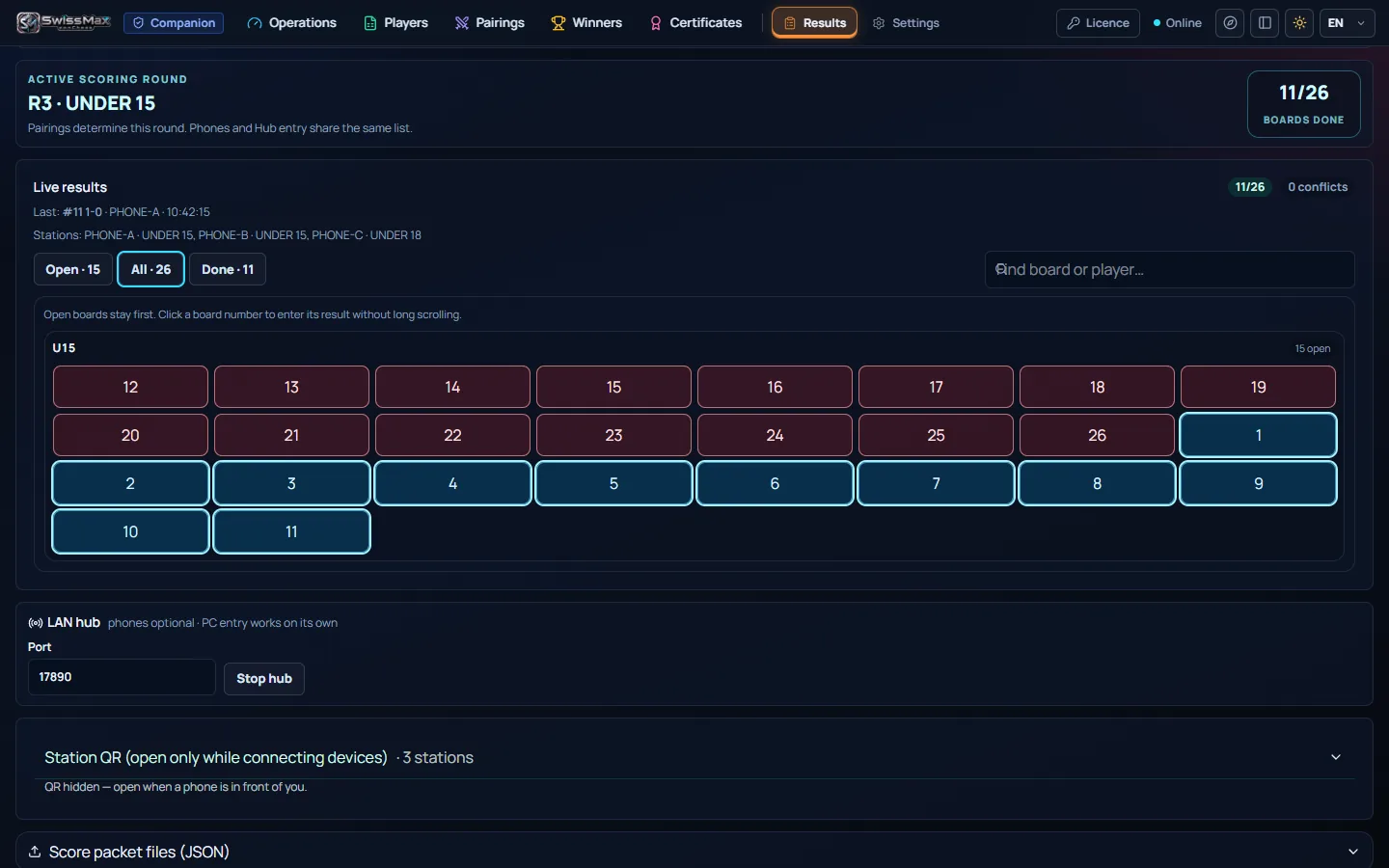
The LAN control center shows how many boards are done, the last result received and which stations are connected. Open boards stay first. Click a board number to see its players and result, or to enter a result brought to the desk.
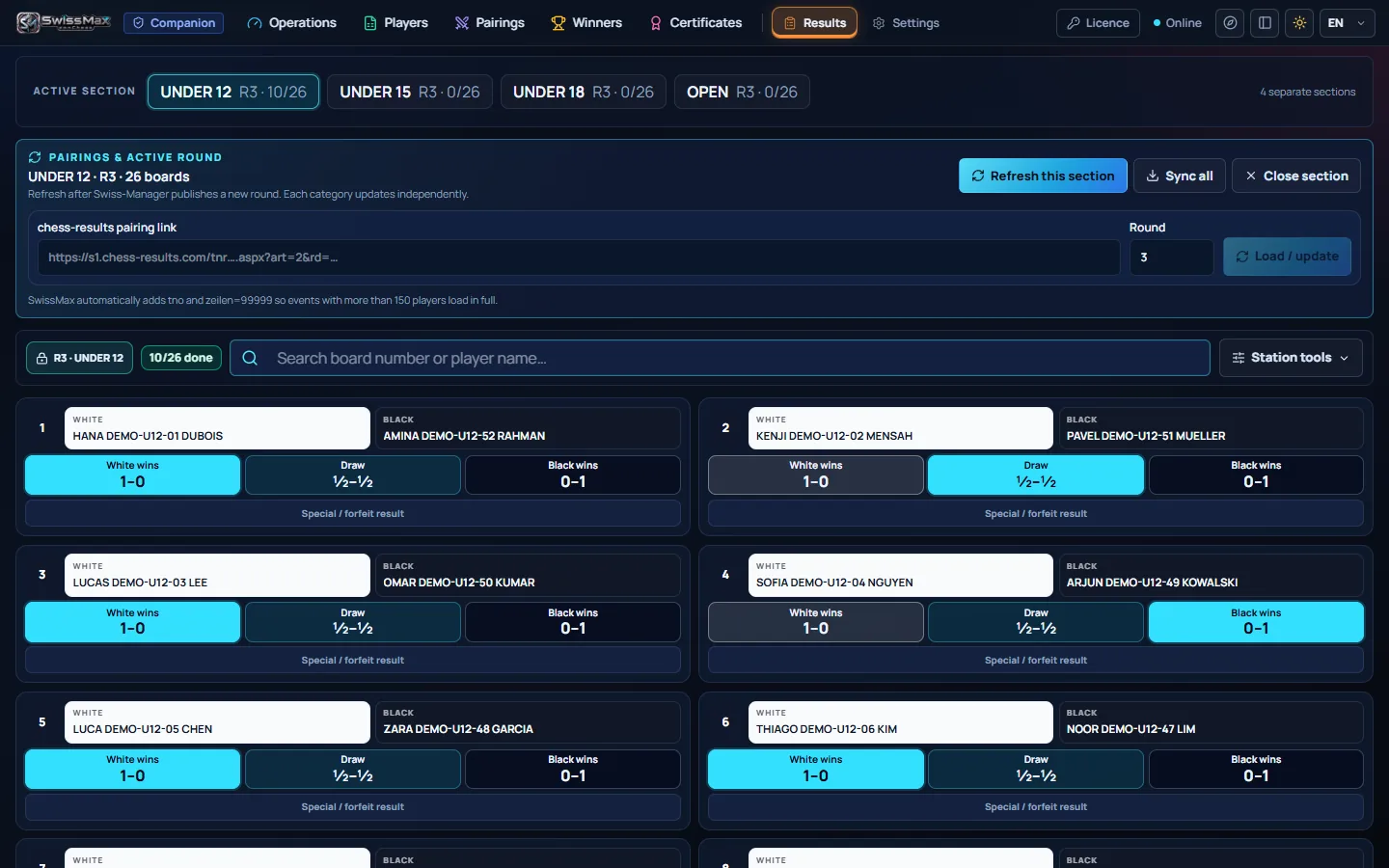
If two phones send different results for one board, SwissMax records neither. Pick A or B on the PC, each shown with the station that sent it.
The same result sent twice is recorded once, and the phone says it was already recorded.
When you move to the next round, connected phones get the new board list. A result sent for the old round is refused.
04 · Export to Swiss-Manager
SwissMax writes the round's results as a Player-Results XML file. Import it into Swiss-Manager, where that round is already paired; Swiss-Manager keeps the official ranking.
Player-Results XML for the active section and round, using each player's starting number.
One XML per section in a single ZIP. Import each into its matching Swiss-Manager file.
Board, players, starting numbers, result, station and time in an XLSX, to check before you import.
A PC can also save its results as a score packet file. The organizer PC merges packets with LAN results, without overwriting.
The XML waits until the round is ready: every board has a result, both players have a starting number, no conflict is open, and the results match the active tournament, section, round and pairings. Older rounds are locked and view-only; a disputed result from an earlier round is corrected in Swiss-Manager.
Frequently asked
No. The phone page is served by SwissMax on the organizer PC and opens in the phone's own browser when the helper scans the QR code. The helper types a station name, such as Arbiter-1, and taps Connect. Nothing is installed and no account is needed.
SwissMax writes the round's results into a Player-Results XML file, per section or every section in one ZIP. You import it into Swiss-Manager, where that round must already be paired. Swiss-Manager still makes the pairings and keeps the official ranking.
SwissMax does not choose for you. The board is held as a conflict, the helper's phone shows “Conflict — wait for control PC”, and the organizer picks A or B on the PC, each shown with the station that sent it. The XML cannot be exported while a conflict is open.
It stays on the Open list on the phones and on the PC. The Player-Results XML is written only when every board in the section has a result; the review spreadsheet can be saved earlier to see what is still missing.
The phones and the organizer PC must be on the same Wi-Fi or LAN. LAN scoring uses the venue network, not the internet. Avoid a guest network. If a phone cannot open the page, the LAN control center can test the phone page on the PC and allow the hub port in Windows Firewall. If the PC test works but phones still fail, the router may keep devices apart; use a private network or a dedicated tournament hotspot.
Yes. LAN results is part of SwissMax Companion. SwissMax Companion is RM160 or USD39.99 for one PC, paid once, with perpetual use of eligible versions and two years of free updates and support. Waitlist members get 50% off. The 14-day trial includes it.
More in SwissMax
A named certificate for every player, with real signatures captured by phone.
Read more →A4 pairing and results pages that look like a broadcast graphic, from one Chess-Results link.
Read more →Prize schemes from the official ranking, winner posters and a reveal video.
Read more →Messy registration forms in, a clean Swiss-Manager file out.
Read more →Helper phones send each board's result to the organizer PC.
You are hereEach player's likely FIDE and MCF change, before results go official.
Read more →RM160 / USD39.99 · 50% off for the waitlist
Try it free for 14 days, with no key or payment details. Join the waitlist for 50% off the Companion licence when sales open, and launch news before anyone else.